Why Your Phone Battery Drains So Fast (and How to Actually Fix It)
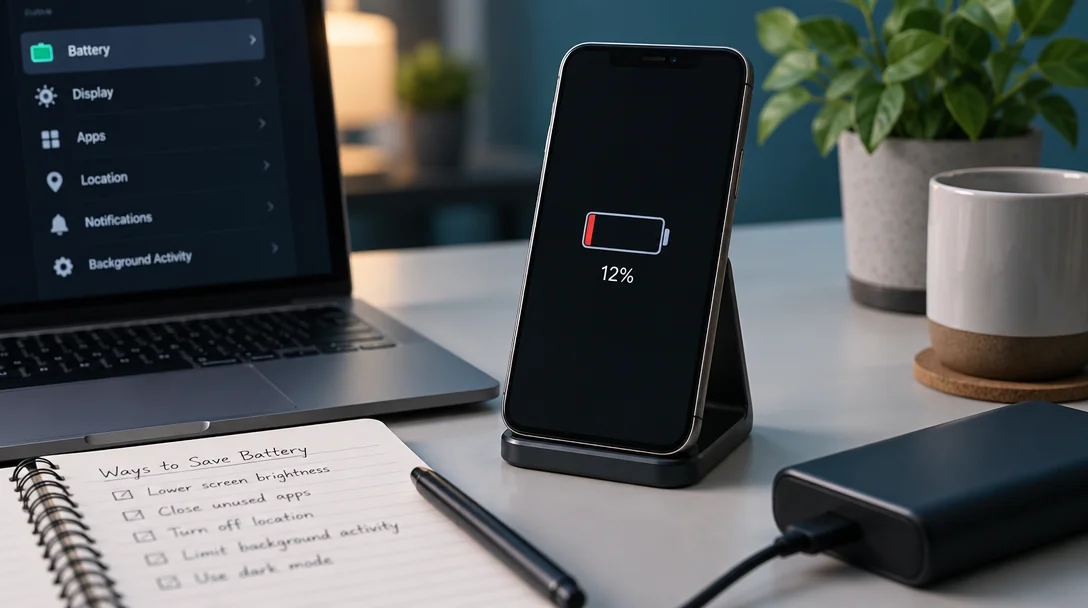
Open Settings > Battery on iPhone or Android to see exactly which apps and features are using the power. Most drain comes from a bright screen, an app misbehaving in the background, or weak cell signal, and all three are fixable. If battery health has dropped well below its original capacity, a replacement battery is the real fix.
If your phone is gasping for a charger by mid-afternoon, it’s tempting to blame the battery itself. Sometimes that’s true. But more often, something specific is eating the power, and your phone can actually tell you what it is. You just have to know where to look.
Quick Answer
Open your battery settings before anything else. On iPhone it’s Settings > Battery; on Android it’s Settings > Battery. Both show which apps and system features used the most power over the past day or week. Most drain problems come down to a bright screen, an app misbehaving in the background, or weak cell signal, and all three are fixable. If your battery health is well below its original capacity, a replacement is the real answer.
Step 1: Let your phone tell you what’s wrong
This is the step most people skip, and it takes about thirty seconds.
On an iPhone, go to Settings > Battery. You’ll see your battery level for the last 24 hours and up to the last 10 days, plus a breakdown of battery usage by app. Apple even flags insights when it spots a usage pattern that’s burning extra power. Tap any app in the list and you’ll see how much of its activity happened on screen versus in the background. An app with heavy background time is a prime suspect.
On Android, the path is Settings > Battery (Samsung hides it under Settings > Battery and device care). You’ll get a similar breakdown of what’s been consuming power since the last charge.
Read it like a detective, not a judge. A video app at the top of the list just means you watched a lot of video. A puzzle game you haven’t opened since Tuesday sitting at 25% of your battery usage is a genuine clue.
Step 2: Deal with background apps
Some apps keep working after you close them, refreshing content, checking location, syncing photos. Done sparingly, that’s fine and useful. Done constantly, it’s a slow leak.
On iPhone, go to Settings > General > Background App Refresh and turn it off for apps that don’t need it. You probably want it on for messaging apps and off for everything you don’t actively use. On Android, go to Settings > Apps, tap the suspect, then Battery, and restrict its background activity.
One myth worth killing here: force-closing all your apps doesn’t save battery. Your phone uses more energy relaunching an app from scratch than it does keeping a suspended one in memory. The setting matters; the app-swiping ritual mostly doesn’t.
Step 3: Check your screen
The display is usually the single biggest power draw on any phone, so it’s the most rewarding thing to tune.
Turn on auto-brightness instead of running the screen at full blast, and shorten the screen timeout so the display sleeps quickly when you set the phone down. Dark mode helps a bit on phones with OLED screens, since black pixels are effectively off, but it’s a modest saving, not a miracle.
Step 4: Watch out for weak signal
This one surprises people. When your phone struggles with a poor cellular connection, at the edge of coverage, in a basement, on a train rattling between towers, it boosts its radio power to compensate. That burns battery fast, and it’s exactly why your phone sometimes gets oddly warm in your pocket in certain buildings.
If you’re somewhere with bad cell signal but decent Wi-Fi, switching to Wi-Fi calling helps. And if you truly don’t need connectivity for a while, airplane mode is the honest fix.
Step 5: Check the battery’s actual health
Batteries are consumables. Every charge cycle wears them down a little, and after a few years the battery simply holds less than it used to. No setting will fix that.
On iPhone, go to Settings > Battery > Battery Health (on iPhone 15 and later, Settings > Battery > Battery Health shows cycle count and manufacture date too). You’ll see Maximum Capacity as a percentage of what the battery held when new. Somewhere in the low 80s after a couple of years is normal. If it’s much lower, or the phone says the battery needs service, a replacement is the cheapest way to make an old phone feel new again.
Many Android phones show battery health too (Samsung hides it in the Samsung Members app’s diagnostics), and repair shops can test it in minutes.
Habits that quietly wear a battery out
Day-to-day drain and long-term battery life are different problems. A few habits help with the second one:
- Heat is the enemy. Apple notes that using or charging a phone in ambient temperatures above 95°F (35°C) can permanently reduce battery lifespan. Don’t leave it cooking on a car dashboard in summer.
- Take the case off while fast charging if it traps a lot of heat.
- Keep Optimized Battery Charging on. iPhones learn your routine and pause charging near 80% until just before you typically unplug, which reduces time spent at a full charge.
- If you’re storing a phone long-term, charge it to about half before putting it away. Both a fully drained and a fully charged battery degrade faster in storage.
When to give up and replace it
If battery health is low, the phone shuts off unexpectedly at 20 or 30%, or it only survives with a battery pack strapped to it, stop tweaking settings. A battery replacement costs a fraction of a new phone and usually restores battery life to like-new. For a phone that’s otherwise fine, it’s the best money you can spend on it.