How to Back Up Your Phone and Computer: The 3-2-1 Rule Explained
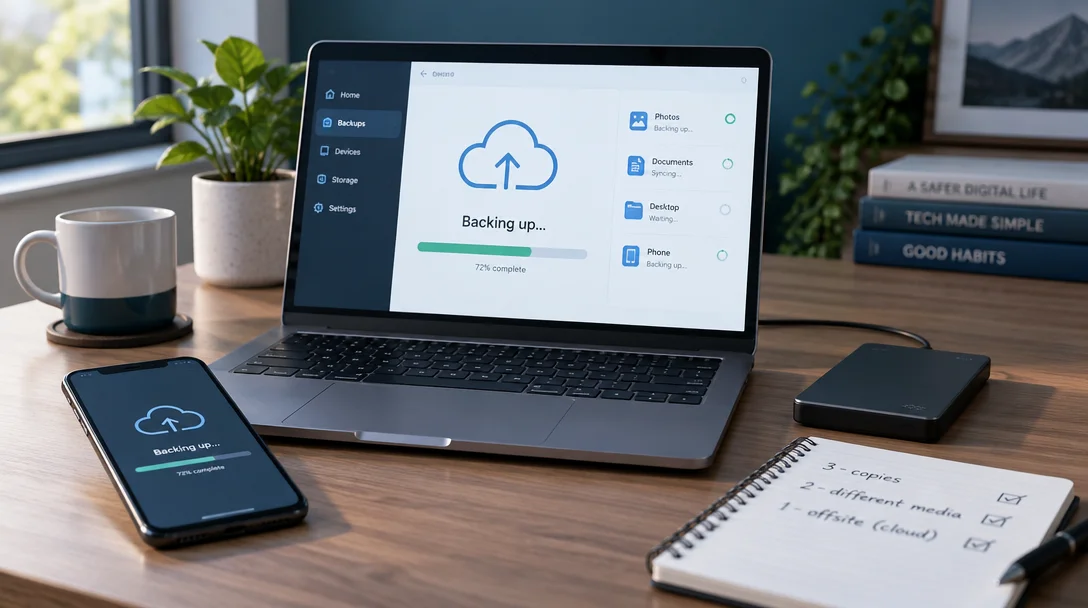
Keep three copies of your important files: the original, a cloud backup (iCloud, Google One, OneDrive or Time Machine/File History to a drive), and one copy on an external drive you disconnect after backing up and store elsewhere.
Phones get dropped in water. Laptops get stolen. Hard drives fail without warning, and one wrong click can delete a decade of photos. Backups are the only reliable insurance against all of it, yet most people only think about them after the loss. This guide shows you how to set up backups that run themselves, using a simple rule that security agencies recommend.
What a backup actually is
A backup is a copy of your important data kept somewhere separate from the original, so that losing the original doesn’t mean losing the data. That second part matters: a folder synced to a cloud drive on the same account is not the same thing as a backup, because deleting a file locally usually deletes it from the cloud too. The UK’s National Cyber Security Centre (NCSC) suggests a simple test: back up anything whose loss would inconvenience you — photos, documents, contacts, messages — and know how to restore it.
The 3-2-1 rule: the standard that fits in one line
The US Cybersecurity and Infrastructure Security Agency (CISA) recommends the 3-2-1 rule for anyone protecting important data:
- 3 copies of your important files — the original plus two backups.
- 2 different types of storage — for example a hard drive and a cloud service.
- 1 copy kept off-site — outside your home, so a fire, flood or theft can’t take out everything at once.
For most people this translates to one everyday combination: automatic cloud backup on your phone or computer, plus an external hard drive you back up to and then disconnect. If you want extra protection against ransomware, CISA’s guidance on offline backups adds one refinement: keep at least one copy disconnected from your devices when you’re not actively backing up, since malware can spread to attached drives.
How to back up an iPhone or iPad
Apple gives you two built-in methods, and you can use both:
iCloud backup (automatic, off-site): Open Settings, tap your name, then iCloud > iCloud Backup, and turn on Back Up This iPhone. Your phone then backs itself up automatically whenever it is connected to power, locked, and on Wi-Fi. You can also tap Back Up Now for a manual copy. iCloud backups cover device settings, app data, messages and your Home Screen layout; a free iCloud account includes limited storage, and Apple will prompt you if a backup doesn’t fit.
Computer backup (local, free of storage limits): Connect the iPhone to a Mac and use Finder, or to a Windows PC and use iTunes, then choose Back Up Now. Select Encrypt local backup if you want passwords and Health data included — the encrypted copy is also protected if the drive is lost.
How to back up an Android phone
Android backs up through your Google account. Go to Settings > Google > All services > Backup (the exact path varies slightly by manufacturer) and turn on Backup by Google One. Your apps, app data, call history, contacts, device settings and photos are then copied to Google’s cloud automatically — Google includes 15 GB of free storage per account, with paid Google One plans beyond that. Note that a first backup can take up to 24 hours to complete, so check back the next day and confirm the backup timestamp before relying on it.
How to back up a Windows PC
Windows 10 and 11 include File History, which automatically saves versioned copies of your personal folders to an external drive or network location. Connect an external drive, open Control Panel > System and Security > File History, choose the drive and click Turn On. It protects Documents, Pictures, Videos, Music and Desktop by default; for folders stored elsewhere, add them to a library so File History picks them up. To recover something, right-click the file or folder in File Explorer and choose Restore previous versions.
File History protects your files, not Windows itself — for full disaster recovery, use Backup and Restore (Windows 7) to create a system image on the same drive, and make a USB recovery drive to boot from if the PC won’t start. Windows’ cloud option (Windows Backup to OneDrive) syncs key folders and settings, but with the same caveat as any sync service: it’s a convenience layer, not a true second backup.
On a Mac, the equivalent is Time Machine: connect an external drive, open System Settings > General > Time Machine, select the drive, and it keeps hourly, daily and monthly snapshots automatically.
Cloud or external drive? Use both, and know the trade-offs
| Cloud backup | External drive | |
|---|---|---|
| Runs automatically | Yes, once enabled | Yes, while connected |
| Survives fire, flood, theft | Yes (off-site) | Only if stored elsewhere |
| Protects against ransomware | Partially — depends on version history | Yes, if disconnected after backup |
| Needs internet | Yes, and can be slow on first run | No |
| Ongoing cost | Subscription beyond free tier | One-time hardware cost |
Two habits make whichever mix you choose far safer. First, protect the cloud account with a strong password and two-factor authentication, as the NCSC recommends — your backup is only as secure as the account that controls it. Second, don’t leave the external drive permanently plugged in: disconnect it between backups so malware can’t reach it.
Drives fail more often than people expect
If you’re trusting a single hard drive with your only copy, the numbers argue otherwise. Backblaze, which publishes the industry’s largest open dataset on drive reliability, tracked roughly 350,000 production drives in 2026 and reported an annualized failure rate of 1.36% across its fleet for 2025, rising to 1.73% in one quarter of 2026, with some older models failing at more than 8% per year. A failure rate of “only” one or two per hundred drives is excellent for a data centre with replacements on hand — but if that drive is your only copy of the family photos, one failure is a hundred percent loss. That is the whole argument for 3-2-1.
Test your backup before you need it
A backup you have never restored is a hope, not a plan. Once everything is set up, do a five-minute drill: delete a test file (or use one you don’t need), restore it from your cloud backup, then from your external drive. Check the last-backup timestamps on your phone and PC, and set a recurring reminder to look at them monthly. Also verify that what matters most — recent photos, current documents — is actually inside the backup; the NCSC specifically calls out checking for recently taken photos and newly created files, because backup apps exclude folders more often than people realize.
Common mistakes to avoid
- Treating sync as backup. OneDrive, Google Drive and Dropbox mirror your files; an accidental deletion propagates to the cloud copy too. Keep a real backup with version history alongside it.
- Backing up to a drive that stays plugged in. Ransomware and power surges both travel down the cable. Disconnect between runs.
- One copy only. A single backup fails with the same probability as the original drive. Two backups on two media types is the minimum for data you can’t replace.
- Never testing a restore. Backup jobs fail silently all the time; the first restore attempt shouldn’t happen during the emergency.
- Ignoring the cloud account’s security. Without two-factor authentication, one phished password can wipe both your account and its backups.
The 20-minute setup, summarized
- Turn on automatic cloud backup: iCloud Backup on iPhone, Backup by Google One on Android, File History or Time Machine’s drive schedule on the computer.
- Buy an external drive at least twice the size of the data you care about, run a first full backup, then disconnect it.
- Protect your cloud account with a strong password and two-factor authentication.
- Restore one test file from each copy to confirm the whole chain works.
- Re-check backup timestamps monthly, and refresh your off-site drive every few weeks.
Backups are the rare piece of technology that costs little, runs itself, and pays off entirely in the one moment everything else fails. Twenty minutes of setup now is the cheapest insurance your digital life will ever get.